

Blog
What Is MetaTrader 4 (MT4) and How Do You Use It for Trading?

MetaTrader 4 (MT4) is a widely used electronic trading platform developed by MetaQuotes for online retail foreign exchange and CFD trading. To use MT4, you download it from a broker, open a demo or live account, analyze price charts with its built-in tools, and then place, manage, and close trades through its user-friendly interface. It is not a broker itself but rather a third-party software that connects you to a broker’s trading servers, allowing you to access the financial markets. The platform is celebrated for its powerful charting capabilities, extensive customization options, and support for automated trading through programs known as Expert Advisors (EAs).
The core features of MT4 include advanced charting tools, a vast library of technical indicators, and multiple order types. These components work together to provide traders with a comprehensive toolkit for market analysis and trade execution. You can use line, bar, or candlestick charts across various timeframes, overlay indicators like Moving Averages and RSI to identify patterns, and place market or pending orders to enter and exit the market at precise levels. This combination of features has made it the industry standard for over a decade.
Getting started with MetaTrader 4 involves choosing a compatible broker, installing the software, and practicing with a risk-free demo account. You must first select a forex broker that offers the MT4 platform, download their specific version of the software from their website, and complete the installation process. Once installed, it is highly recommended to open a demo account. This allows you to trade with virtual funds, familiarizing yourself with the platform’s interface and testing your strategies without risking real money.
This guide will walk you through everything you need to know, from the platform’s fundamental features to the step-by-step process of placing your first trade. We will explore the layout, explain how to use its analytical tools, and provide a clear tutorial on managing your positions, giving you the confidence to navigate the markets effectively.
What Exactly Is the MetaTrader 4 (MT4) Platform?
MetaTrader 4 is a third-party electronic trading platform developed by MetaQuotes in 2005, primarily used for online Forex and CFD trading. It serves as the bridge between a retail trader and their broker, providing the necessary tools to analyze financial markets, place orders, and manage trading accounts.
To understand this better, it’s helpful to think of MT4 as the software application, much like a web browser, while the broker is the service provider, like an internet company. You cannot use MT4 for live trading without connecting it to a broker. Brokers purchase licenses from the developer, MetaQuotes, to offer the platform to their clients. When you download MT4, you are typically downloading a version branded by a specific broker, already configured to connect to their trading servers. This business model is why you will find MT4 offered by hundreds of different brokerage firms around the world. The platform itself is standardized, but the trading conditions, such as spreads, commissions, and available instruments, are determined by the broker you choose.
The primary purpose of MT4 is to give individual traders access to the same level of analytical power previously available only to institutional players. Before platforms like MT4, retail trading was far more cumbersome. MT4 democratized trading by providing a stable, reliable, and feature-rich environment on a personal computer. Its popularity skyrocketed due to its simplicity, robust performance, and extensive customization options. Even with the release of its successor, MetaTrader 5 (MT5), MT4 remains incredibly popular, especially within the forex trading community. This lasting appeal is a testament to its solid design and the massive ecosystem of custom indicators and automated trading robots built for it over the years.
MT4 specializes in Forex and Contracts for Difference (CFDs). CFDs are derivatives that allow you to speculate on the price movement of various assets, such as indices like the S&P 500, commodities like gold and oil, and even individual stocks, without owning the underlying asset. The platform’s design is optimized for these markets, offering features like one-click trading, detailed price quotes in the Market Watch window, and advanced charting tailored for technical analysis. This focus on Forex and CFDs makes it a powerful tool for traders who want to capitalize on short-term price fluctuations across a diverse range of global markets.
What Are the Core Features of MetaTrader 4?
The core features of MetaTrader 4 are its advanced charting tools, a comprehensive suite of built-in technical indicators, and a flexible order management system. Let’s explore how these components provide a complete environment for technical analysis and trade execution.
How Do You Use MT4 Charting Tools?
MT4’s charting tools allow you to visualize price movements and perform in-depth technical analysis. The platform offers three main chart types that you can easily switch between.
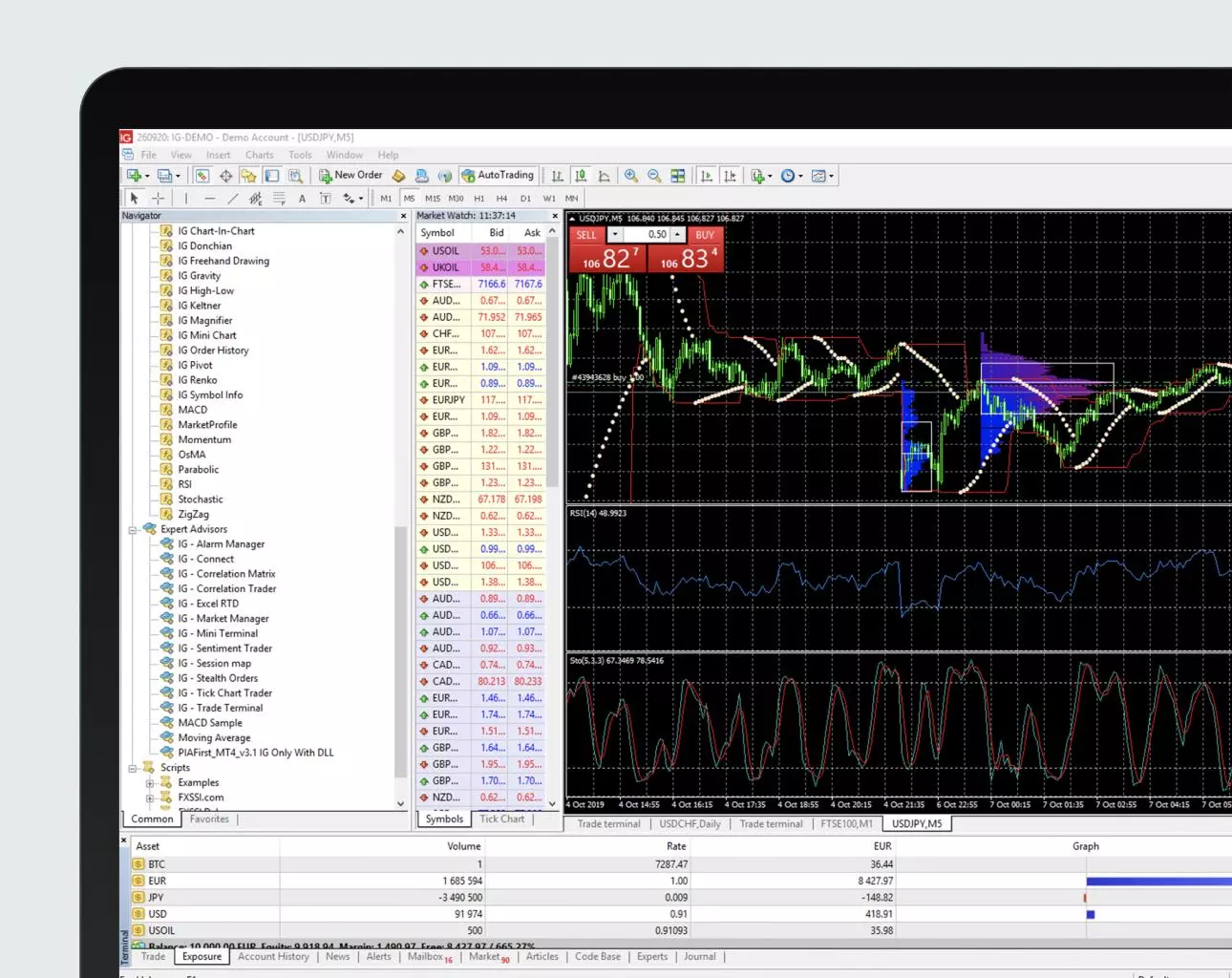
- Line Charts: This is the simplest type, connecting closing prices over a period. It provides a clean, easy-to-read view of the overall price trend and is useful for identifying major patterns and market direction at a glance.
- Bar Charts: Each bar represents a single period (like one hour or one day) and shows four key prices: the open (small horizontal line on the left), the close (small horizontal line on the right), the high (top of the vertical line), and the low (bottom of the vertical line). Bar charts offer more detail than line charts, showing the price volatility within each period.
- Candlestick Charts: Similar to bar charts, candlesticks also show the open, close, high, and low. However, they use a “body” to display the range between the open and close price. If the close is higher than the open, the body is typically green or white (bullish). If the close is lower than the open, it’s red or black (bearish). Candlesticks are the most popular chart type because they make it easier to see price action and identify common patterns.
You can also analyze these charts across nine different timeframes, from one minute (M1) to one month (MN). Shorter timeframes are used by day traders looking for quick opportunities, while longer timeframes are preferred by swing or position traders analyzing broader market trends.
Beyond chart types, MT4 includes graphical objects for analysis. You can draw trend lines to identify the direction and strength of a trend, plot horizontal support and resistance lines to mark key price levels, and use channels to find trading ranges. Another powerful tool is the Fibonacci retracement, which helps identify potential reversal levels based on the famous Fibonacci sequence.
What Technical Indicators Are Included in MT4?
MT4 comes pre-loaded with over 30 built-in technical indicators, which are mathematical calculations based on price, volume, or open interest. These indicators help you confirm trends, identify momentum, and find potential entry or exit points.
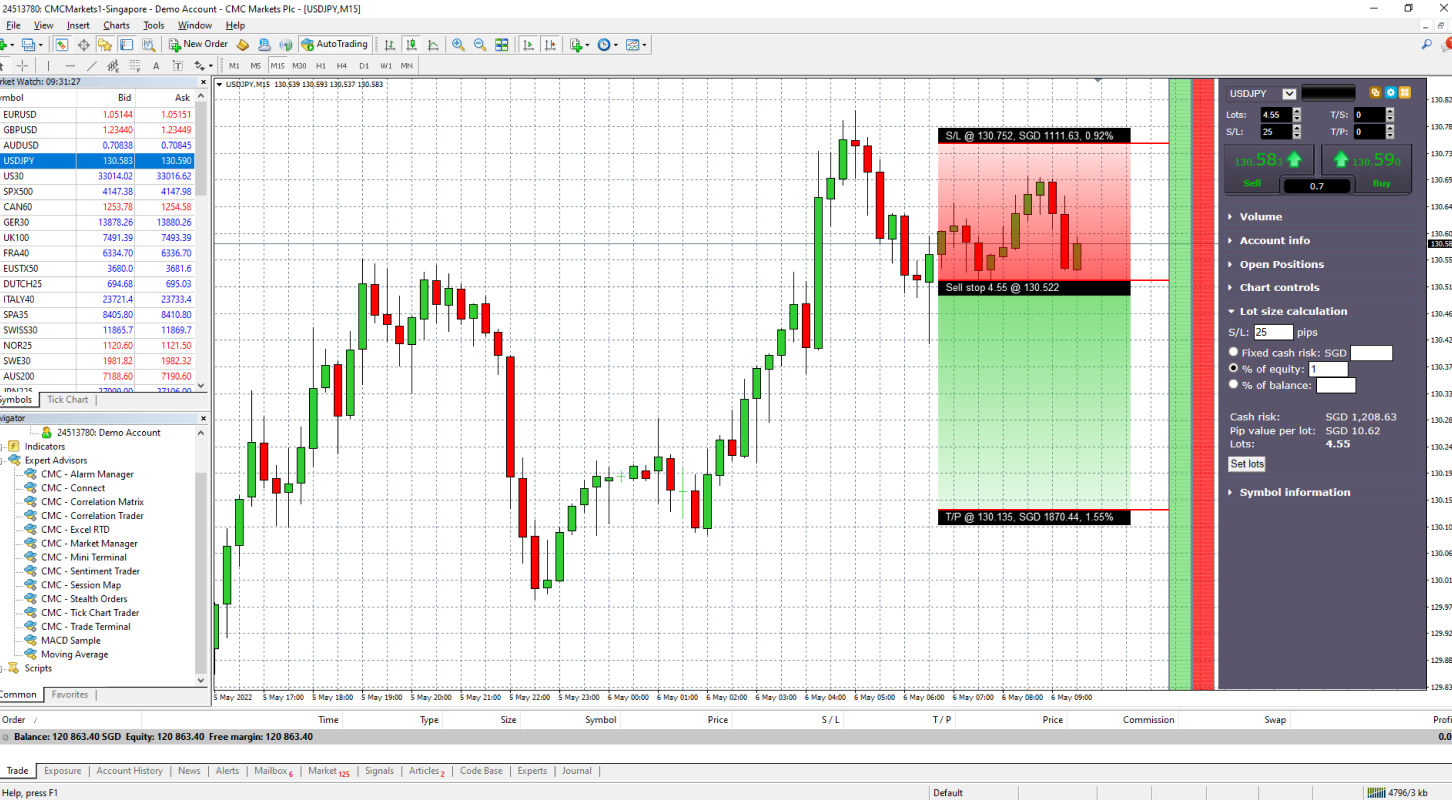
- Moving Averages (MA): This is one of the most fundamental trend-following indicators. It smooths out price data by creating a constantly updated average price. A Simple Moving Average (SMA) gives equal weight to all prices, while an Exponential Moving Average (EMA) gives more weight to recent prices, making it more responsive to new information. Traders often look for crossovers between different MAs as trade signals.
- Relative Strength Index (RSI): The RSI is a momentum oscillator that measures the speed and change of price movements. It ranges from 0 to 100 and is used to identify overbought (typically above 70) or oversold (typically below 30) conditions in a market, which could signal a potential price reversal.
- Moving Average Convergence Divergence (MACD): This versatile indicator shows the relationship between two moving averages of an asset’s price. The MACD consists of the MACD line, a signal line, and a histogram. Traders use it to identify trend direction, momentum, and potential trend reversals when the MACD line crosses above or below the signal line.
- Bollinger Bands: This tool consists of three lines: a simple moving average in the middle, and an upper and lower band that are typically two standard deviations away from the middle line. The bands expand and contract based on market volatility. Prices are considered high when they touch the upper band and low when they touch the lower band.
These are just a few examples. The platform includes many more, and you can also download thousands of custom indicators created by the MT4 community.
What Types of Orders Can You Place in MT4?
An order is an instruction you send to your broker to open or close a position. MT4 supports two main categories of orders: Market Orders and Pending Orders.

- Market Order: This is the simplest order type. It instructs the broker to execute your trade immediately at the best available price in the market. You would use a market order when you want to get into a trade right away and are less concerned about the exact entry price.
- Pending Order: This is an order to buy or sell an asset at a pre-determined price in the future. The trade will only be executed if the market reaches that specific price level. This allows you to plan trades in advance without having to watch the market constantly. There are four types of pending orders:
Buy Limit: An order to buy an asset at a price below* the current market price. You use this when you believe the price will drop to a certain level and then reverse upwards.
Sell Limit: An order to sell an asset at a price above* the current market price. You use this when you believe the price will rise to a certain level before reversing downwards.
Buy Stop: An order to buy an asset at a price above* the current market price. This is used when you believe that if the price breaks through a certain resistance level, it will continue to rise.
Sell Stop: An order to sell an asset at a price below* the current market price. This is used when you think that if the price breaks below a certain support level, it will continue to fall.
These order types give you complete control over how and when you enter the market.
How Do You Get Started with MetaTrader 4?
To get started, you need to choose a reliable broker, download their branded MT4 platform, install the software, and open a risk-free demo account. This straightforward process allows you to practice trading and become familiar with the platform’s features without committing any real capital.
How Do You Choose a Broker and Download MT4?
The first and most important step is selecting a forex broker. Because MT4 is a third-party platform, you do not download it from the developer, MetaQuotes, for live trading. Instead, you download it directly from the broker you intend to use. The broker provides the connection to the financial markets, so choosing a trustworthy one is essential. When evaluating brokers, consider the following factors:
1. Regulation: Ensure the broker is regulated by a top-tier financial authority, such as the Financial Conduct Authority (FCA) in the UK, the Australian Securities and Investments Commission (ASIC), or the Cyprus Securities and Exchange Commission (CySEC). Regulation provides a layer of security for your funds.
2. Trading Costs: Look at the broker’s spreads (the difference between the buy and sell price) and commissions. Lower costs mean more of your profits stay with you.
3. Customer Support: Good customer service is invaluable, especially when you are new to trading. Check if they offer support through live chat, phone, or email and what their hours of operation are.
4. Asset Selection: Confirm the broker offers the currency pairs, indices, or commodities you want to trade on their MT4 platform.
Once you have selected a broker, navigating to their website is the next step. You will typically find the MT4 download link in a section labeled “Trading Platforms,” “Platforms,” or “Downloads.” Most brokers offer versions for Windows, Mac, and mobile devices (iOS and Android). Click the download link for the appropriate operating system to get the installation file. It will be a specific version for that broker, pre-configured with their server details, which simplifies the login process later on.
How Do You Install MT4 and Open a Demo Account?
After downloading the installation file (usually an .exe file for Windows), the installation process is simple and similar to any other software.

1. Locate the downloaded file in your ‘Downloads’ folder and double-click it to run the installer.
2. Read and accept the license agreement. The installation wizard will guide you through the next steps.
3. Choose the installation folder. You can usually stick with the default location unless you have a specific reason to change it.
4. Click ‘Finish’ to complete the installation. The MT4 platform will typically launch automatically.
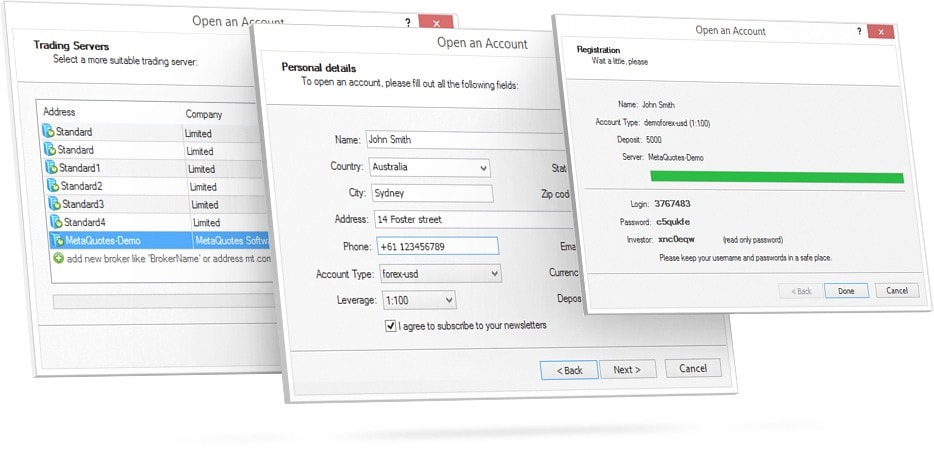
Upon first launch, MT4 will prompt you to open an account. This is the perfect time to create a demo account. A demo account is a simulated trading account that mirrors the live market environment but uses virtual funds. It is an indispensable tool for beginners. It allows you to:
- Learn the Platform: Practice opening and closing trades, setting stop losses, using indicators, and navigating the interface without any financial risk.
- Test Your Strategies: Try out different trading strategies to see what works and what does not in real market conditions.
- Build Confidence: Gain the confidence you need before you start trading with your own money.
To open a demo account, you will fill out a short form with basic information like your name and email. The platform will then provide you with a login ID, a password, and a server name. Keep these details safe. You can now log in to your demo account and start exploring the world of trading, completely risk-free.
How Do You Use the MetaTrader 4 Interface?
You use the MetaTrader 4 interface by navigating its main components: the Market Watch for price quotes, the Navigator for account access, and the Terminal for trade management. Understanding these three key windows is fundamental to using the platform effectively.
What Is the Market Watch Window?
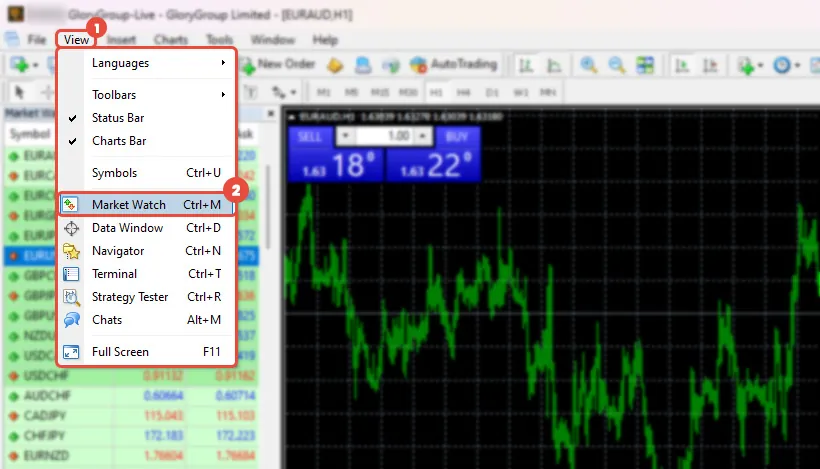
The Market Watch window, typically located on the top-left side of your screen, is your real-time portal to market prices. This window displays a list of financial instruments you can trade, such as currency pairs (e.g., EUR/USD), commodities (e.g., Gold), and indices (e.g., US30). For each instrument, it shows the live Bid price (the price at which you can sell) and the Ask price (the price at which you can buy). The small difference between these two prices is known as the spread, which is the broker’s fee for executing the trade.

The Market Watch is highly customizable. If you do not see the instrument you want to trade, you can simply right-click anywhere inside the window and select “Symbols.” A new window will appear, listing all available asset classes offered by your broker. From there, you can choose which symbols to show or hide. You can also right-click and select “Columns” to add useful information, such as the daily high and low prices or the time of the last price quote. To open a new chart for any instrument, just click and drag the symbol from the Market Watch window onto the main chart area.
What Is the Navigator Window?
Located directly below the Market Watch window on the left-hand side, the Navigator window acts as your central control panel. It provides quick access to all the essential elements of your trading setup, organized into a neat tree structure. This is where you manage your accounts and apply analytical tools to your charts.

The Navigator window is divided into several key sections:
- Accounts: This is where you will see all the trading accounts you have set up on the platform. If you have both a demo account and a live account, you can easily switch between them by double-clicking the desired account number.
- Indicators: This folder contains all the technical indicators available in MT4. They are grouped into categories like ‘Trend’, ‘Oscillators’, and ‘Volumes’. To add an indicator to your chart, you just find it in this list and drag it onto the chart. A properties window will pop up, allowing you to customize its settings.
- Expert Advisors (EAs): This section is for automated trading. EAs are programs that can automatically execute trades on your behalf based on a pre-defined set of rules. If you have any EAs, you will manage them from here.
- Scripts: Scripts are similar to EAs but are designed to perform a single, one-time action, like closing all open orders simultaneously.
The Navigator simplifies your workflow by keeping your accounts and tools organized and easily accessible.
What Is the Terminal Window?
The Terminal window is one of the most important parts of the MT4 interface, located at the bottom of the screen. It is a multi-functional area with several tabs that provide critical information about your trading activity.

Here are the essential tabs you will use most often:
- Trade: This is arguably the most-viewed tab. It displays all of your open positions and any pending orders. You can see details for each trade, including the ticket number, entry price, Stop Loss and Take Profit levels, and the current floating profit or loss. Your account balance, equity, and margin information are also shown at the bottom of this tab.
- Account History: Once you close a trade, it disappears from the ‘Trade’ tab and moves here. The ‘Account History’ tab provides a complete record of all your past trading activity, including closed trades, deposits, and withdrawals. You can generate detailed reports from this section to analyze your performance over time.
- Alerts: In this tab, you can set up price alerts. For example, you can ask MT4 to notify you with a sound or a pop-up message when the price of EUR/USD reaches a specific level. This is useful for monitoring key levels without having to watch the charts constantly.
- Journal: The Journal tab logs all the actions your platform takes, from connecting to the server to executing an order. If you ever encounter an issue, such as a trade not executing properly, the Journal provides a technical record that can help you and your broker’s support team diagnose the problem.
By mastering these three windows, the Market Watch, Navigator, and Terminal, you will be able to navigate the MT4 platform with confidence and control.
How Do You Place and Manage a Trade in MT4?
To place and manage a trade in MT4, you open the ‘New Order’ window, define your trade parameters like volume and risk levels, and then monitor and close the position via the ‘Trade’ tab in the Terminal. This process gives you full control over the entire lifecycle of a trade, from initiation to completion.
How Do You Open a New Order?
Placing a trade in MT4 starts with opening the ‘New Order’ window. There are several convenient ways to do this, allowing you to react quickly to market movements:
- Press the F9 key on your keyboard.
- Click the “New Order” button in the main toolbar.
- Right-click on a specific symbol in the Market Watch window and select “New Order.”
- Right-click directly on the chart of the instrument you want to trade and choose “Trading” > “New Order.”
Once the ‘New Order’ window appears, you need to fill in a few key fields to define your trade.
1. Symbol: This dropdown menu lets you select the financial instrument you wish to trade. It will default to the instrument of the chart you currently have open, but you can change it to any other symbol offered by your broker.
2. Volume: This field determines the size of your trade, measured in lots. A standard lot is 100,000 units of the base currency. Many brokers also offer mini lots (10,000 units) and micro lots (1,000 units), which are better suited for beginners with smaller account sizes.
3. Type: Here, you choose between “Market Execution” (to place a trade immediately at the current price) or “Pending Order” (to set a trade for a future price).
After setting these parameters, you are ready to execute. Simply click the large “Sell by Market” or “Buy by Market” button. Your trade will be opened instantly, and you will see it appear in the ‘Trade’ tab of the Terminal window.
How Do You Set a Stop Loss and Take Profit?
Setting a Stop Loss and Take Profit is a critical step in responsible trading and risk management. These are protective orders that automatically close your position once the price reaches a certain level, preventing large losses and securing gains.

- A Stop Loss (SL) is an order placed to close a losing position at a specific price. For a buy trade, you set the SL below your entry price. For a sell trade, you set it above your entry price. Its purpose is to limit your potential loss on a single trade to a level you are comfortable with.
- A Take Profit (TP) is an order placed to close a profitable position at a specific price. For a buy trade, you set the TP above your entry price. For a sell trade, you set it below your entry price. Its function is to lock in your profits automatically so you do not have to be in front of your screen to close the trade.
You can set your SL and TP levels in two primary ways. First, you can input the exact price levels directly into the “Stop Loss” and “Take Profit” fields within the ‘New Order’ window before you execute the trade. Alternatively, if your trade is already open, you can add them later. Simply go to the ‘Trade’ tab in the Terminal, right-click on the open position, select “Modify or Delete Order,” and enter your desired SL and TP values. An even more intuitive method is to click and drag the entry price line on the chart itself. Dragging it down on a buy trade will set a Stop Loss, while dragging it up will set a Take Profit.
How Do You Monitor and Close an Open Position?
Once your trade is live, you can monitor its performance in real-time from the ‘Trade’ tab in the Terminal window at the bottom of your screen. This tab provides a complete overview of all your open positions. You will see columns for the order ticket number, the time it was opened, the type (buy or sell), size (volume), symbol, entry price, your set Stop Loss and Take Profit levels, and most importantly, the current market price and your floating Profit. The profit will be shown in your account’s base currency and will fluctuate with every price tick. It will be positive (blue) if the trade is in profit and negative (red) if it is in a loss.

When you are ready to close your position, whether to take a profit or cut a loss, the process is very simple. In the ‘Trade’ tab, locate the position you want to close. You can either right-click on it and select “Close Order” or, for a faster exit, simply click the small “X” icon on the far right of that trade’s row. A confirmation window will appear, and once you confirm, your position will be closed at the current market price. The realized profit or loss will be added to your account balance, and the trade will move from the ‘Trade’ tab to your ‘Account History’ tab for your records.
What Advanced Features and Comparisons Should You Know About MT4?
MT4’s advanced features include automated trading via Expert Advisors, custom indicators, and mobile access, but it differs significantly from its successor, MT5, and other modern platforms like cTrader and TradingView. Furthermore, understanding these distinctions and advanced functionalities is key to maximizing your trading potential and choosing the right tools for your strategy.
What Is the Difference Between MetaTrader 4 and MetaTrader 5?
MetaTrader 5 is often mistaken for a simple upgrade to MetaTrader 4, but it is a fundamentally different platform designed for different purposes. While MT4 was built primarily for decentralized foreign exchange trading, MT5 was created as a multi-asset platform to access centralized exchanges for stocks, futures, and commodities in addition to forex. This core difference leads to several key distinctions in functionality.
The platforms differ in their programming languages and backtesting capabilities.
- Programming Language: MT4 uses MQL4, a procedural language that is relatively straightforward. MT5 uses MQL5, an object-oriented language that is more powerful and flexible but not backward compatible with MQL4 scripts.
- Order Types: MT4 offers four basic pending order types. MT5 expands on this with two additional types, Buy Stop Limit and Sell Stop Limit, giving traders more control over entries.
- Backtesting: The Strategy Tester in MT5 is far superior. It is multi-threaded, allowing for much faster optimization of Expert Advisors, and can test strategies across multiple currency pairs simultaneously. It also provides more detailed and accurate reports.
What Are Expert Advisors (EAs) and Custom Indicators?
Expert Advisors and custom indicators are powerful tools within MetaTrader 4 that enable algorithmic and enhanced trading analysis. An Expert Advisor, or EA, is a trading robot that fully automates your trading strategy. It is a script written in the MQL4 programming language that can analyze market conditions and execute trades on your behalf based on a predefined set of rules. The primary benefit of an EA is that it can operate 24 hours a day without emotional interference, ensuring that trading logic is applied consistently.

Custom indicators, on the other hand, are user-created analytical tools that can be added to charts.
- Enhance Analysis: They allow traders to visualize market data in ways that are not possible with the standard, built-in indicators. For example, a trader could create an indicator that highlights specific candlestick patterns automatically.
- Provide Signals: Custom indicators can be programmed to generate alerts or signals when certain market conditions are met, helping traders identify potential entry or exit points without constantly watching the charts.
- Foundation for EAs: Many EAs use the signals from one or more custom indicators as the basis for their trading decisions. A developer might create a unique indicator first and then build an EA to trade based on its output.
Can You Use MetaTrader 4 on a Mobile Device?
Yes, MetaTrader 4 is fully functional on mobile devices through dedicated applications for both iOS and Android operating systems. The mobile app allows traders to stay connected to the markets and manage their accounts from anywhere with an internet connection. It provides a robust set of features designed for on-the-go trading, including the ability to open, modify, and close positions with just a few taps. You can also view live price charts, access a basic suite of the most popular technical indicators, and review your complete trade history.
However, the mobile version has important limitations compared to the desktop platform.
- No Custom Tools: You cannot install or run custom Expert Advisors or third-party indicators on the mobile app. Its functionality is limited to the tools that come pre-installed.
- Limited Analysis: While you can perform basic technical analysis, the smaller screen size and reduced toolset make in-depth charting and strategy development difficult.
- No Backtesting: The mobile app does not include the Strategy Tester, so all algorithmic development and testing must be done on the desktop version. The mobile platform is best used for monitoring positions and executing trades, not for comprehensive analysis or automated strategy deployment.
What Are Some Common Problems When Using MT4?
Even though MetaTrader 4 is a stable platform, users occasionally encounter technical issues that can disrupt their trading. The most common problems are typically related to connectivity or account authentication. For example, a “No connection” error displayed in the bottom-right corner means the platform is not receiving data from the broker’s server. To fix this, first check your internet connection. If that is stable, click the connection status bar and select “Rescan Servers” to force the platform to find a better connection point.

Another frequent issue is the “Invalid account” error, which prevents you from logging in.
- Verify Credentials: This almost always means the account number, password, or server name is incorrect. Carefully re-enter your login details, paying close attention to case sensitivity in your password.
- Select the Right Server: Brokers operate multiple servers, often one for demo accounts and another for live accounts. Ensure you have selected the exact server name provided by your broker during account setup.
- Chart Freezes: If your charts stop updating, it is often due to a poor connection or the platform being overloaded with too many indicators. Restarting the MT4 terminal usually resolves this. If the problem persists, try removing some of the more resource-intensive custom indicators from your charts.
Are There Better Alternatives to MetaTrader 4?
While MetaTrader 4 remains a dominant force in retail trading, several strong alternatives offer different features and user experiences that may be better suited for certain traders. The best platform depends entirely on individual needs, trading style, and preferences for interface design and functionality. For instance, cTrader is a popular competitor known for its modern, clean user interface and advanced order management capabilities, including Depth of Market (DoM) pricing. It uses the C# programming language for its automated trading bots (cBots), which may appeal to developers with a background in that language.

Other platforms also present compelling features.
- TradingView: This platform is widely recognized for its exceptional charting tools, vast library of community-built indicators, and social networking features. While primarily an analysis platform, many brokers have integrated with it to allow trading directly from its charts. Its main strength is in analysis rather than trade execution speed.
- Broker-Proprietary Platforms: Many large brokers, like IG or OANDA, have developed their own in-house trading platforms. These are often seamlessly integrated with the broker’s full range of services and may offer unique features or asset classes not available on MT4. The main drawback is that you are locked into that specific broker’s ecosystem.